
Edit Links |
Mac /
LyX for Mac OS X(redirected from LyX.Mac) << | Page list | >>This is a HOWTO for LyX/Mac, a full-featured native implementation of LyX on the Mac OS X. Table of contents (hide)
 1. DownloadLyX/Mac is available as a binary for Mac OS X 10.4 and later. (Note additional prerequisites below.) The download page is here. There are currently two different binaries:
For users who prefer emacs-like modifier key bindings, there is additional information on customizing these keys, including patched binary versions. 2. PythonLyX depends on a usable Python installation on your system. Until macOS 12.3 (Monterey) Apple shipped the OS with Python 2.7. With macOS 12.3 Python isn't part of the OS anymore. It's part of the tools for developers. So it needs to be installed manually to use LyX. This is true for latest macOS (Ventura) too. If you run LyX the first time on a Mac with macOS 12.3 (Monterey) or newer and haven't installed Python yet you'll get two message boxes partially overlapping each other (see first image of Apple Python). The topmost is from LyX and it tells you the following: The second message box is from Apple and asks for download and installing the Command Line Tools. If you've just updated your macOS from a version before macOS 12.3 (Monterey) you may have no problem for some time. But the OS update removes the Python 2.7 utility and installs the stub Python 3 utility instead. The symptoms for the missing Python 2.7 utility are failures on image conversion, reconfigure of LyX or when opening LyX files from former LyX versions. E.g. the error message for the failure to convert an image after an update to macOS 12.3 (Monterey) or later looks like that:  There are three options to install Python:
Option 1 is good for users with Apple software preference. It should be Apples responsibility to keep it up-to-date. Option 2 requires much less resources for download, install time and disk space. Option 3 is good for developers and users with affinity to use other open source software on the Mac (e.g. for advanced image processing task). 2.1 Software DownloadThe image shows the directory with LyX software disk images, the TeX distribution for typesetting and the original Python package.  To install LyX one open the disk image and copy the LyX application to the applications folder.  2.2 Apple PythonThe first option is used automatically if there is no Python available via option 2 or option 3. The macOS installers for Monterey 12.3 and above provide a stub Python binary to ask for download and install the command line tools of Xcode in case the Python utility is requested. With the first start of LyX it creates the initial configuration files and triggers the question to install the command line tools of Xcode. The process to create the initial configuration files fails and LyX raises another message box to decide how to proceed.  To use Apple Python one has to start the download and wait for the successful install of the command line tools of Xcode. This is a bit time consuming but not as long as it is initially announced.  Until the installer has finished one should close the message box and quit LyX.  After successful install of the command line tools of Xcode there is a usable Python on your system. LyX is able to create the initial configuration files and ready to use. 2.3 Original PythonTo use the original Python download the software from python.org and start the installer.  Finally LyX is able to use Python to create the initial configuration files and run the converters to assemble the document parts, including images etc.  3. Gatekeeper"LyX" can't be opened because it is from an unidentified developer. 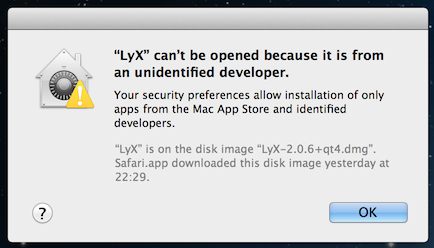 With Mac OS X Mountain Lion a new feature is active: the Gatekeeper. It's there to help protect your Mac from malware and misbehaving apps downloaded from the Internet. An app that is delivered by an unknown developer — one with no Developer ID — will be blocked. To get a developer ID one has to buy a license from Apple with yearly costs. Because there is no support for open source programs like LyX by Apple the application is not signed. (In case you are GPG user we provide gpg signatures, see Download Checksums & signing section). Fortunately there is an easy way to start LyX without disabling Gatekeeper: 1. Don't open the application with a double click. Click it while pressing the Control-key instead. 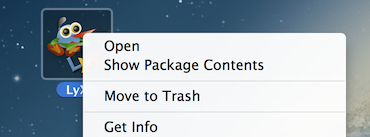 2. Choose Open 3. Another window is opened. There you choose open again. That's it. 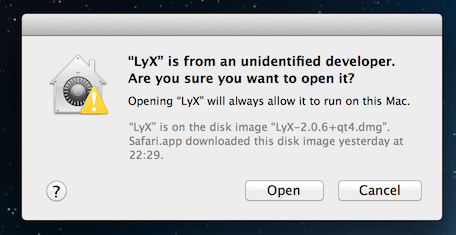 More information is available here (the Apple documentation). 4. PrerequisiteYou need a TeX installation. The easiest option is to use MacTeX. The .dmg file for a complete MacTeX installation is very large (> 1 GB), but it is a very complete distribution and installs right out of the box. MacTeX includes all the components necessary for TeX to work, and includes the bibliography managing program BibDesk. Users with slower download speeds might want to download BasicTeX, a much smaller distribution, linked from the MacTeX page. 5. Useful Helper Programs5.1 PreviewersLyX/Mac uses the system default viewers, and should require no configuration for PDF and HTML. To specify a non-default GUI viewer use open -a app-name or open -a 'Application Name' in Preferences -> Outputs -> File formats -> filetype -> Viewer.
5.2 SpellcheckersAs of LyX/Mac 2.0, spellchecking support is included by default. 5.3 Bibtex tools
5.4 EnvelopesTo print envelopes, install envelope in /usr/local/bin and make it executable. While you're writing a letter in LyX, do File -> Export -> Custom -> ASCII and give 5.5 OmniGraffle converterOmniGraffle is a great software for creating diagrams under Mac OS X (in particular, it works very well with LaTeXiT so that you can easily insert math formulae into diagrams). As it doesn't have a command line mode, you can use an AppleScript in order to insert ".graffle" files directly into LyX.
5.6 On screen quality of included PDF filesWhen you include a PDF graphic in a LyX file, it will appear crisp in the typeset PDF file of your document, but the version you see in the LyX window can be quite ugly. Lyx converts PDFs to PNG to show them in this window, and the default conversion method can choose quite a low definition for these bitmaps. A quicker and better solution would be to include a converter that uses the
You can also increase the 6. Beyond basics6.1 PdfSync and SyncTeX -- Forward Search and Reverse SearchLyX allows, using a suitable viewer such as Skim.app, to navigate quickly between a particular place in a LyX document to the corresponding place in the rendered PDF document (forward search) and from a particular place in the PDF back to the corresponding place in the LyX document (reverse or inverse search). However, some set-up is needed before this functionality is available.
PdfSync is similar to reverse DVI search but is for the (now more common) method of directly producing pdf files. If you use the program Skim as your previewer you can COMAND-SHIFT-click in the previewed pdf file which causes the cursor to move to that point in LyX.
6.2 Version Control
Version control is useful for managing large documents, or documents with multiple authors. In order to implement it, you need to have RCS (Revision Control System) installed. This is a standard part of Xcode. The simplest way to get version control working, is to install the Xcode Tools package contained on the OS X install DVD. See the Mac Version Control page for more information. 6.3 Interaction with X11.Xfig or X-windows previewers like xdvi or gv can be used with LyX/Mac if you modify your 6.4 DVI viewersBy default, LyX will generate PDF files. If for some reason you prefer to create and view DVI files, some set-up hints are provided on the Mac-DVI page. 7. Pipes7.1 Name in Path Problem (JabRef)Programs such as JabRef communicate with LyX via pipes, which are sometimes named incorrectly by default (e.g., they assume that the pipe is in a directory that has a space in its name, such as To fix the LyX pipe in JabRef, open JabRef and go to Then open LyX, go to The next time you run LyX and JabRef, you should be able to push citations directly from your BibTeX bibliography in JabRef into LyX. If anything goes wrong, JabRef will return an error message, and you will have to redefine the pipe. You might try the following: (1) change the LyXServer path in LyX -> Preferences -> Paths back to 8. Known issues
Please report any other bugs to the appropriate LyX mailing list. A web gateway is also available. The information on this page is believed to be accurate, has been used successfully on many systems and sites, and has benefited from the comments and suggestions of many users. Due to the variations in individual systems, this information and the various files and code available on this page are conveyed as is with no warranty of any kind. 9. More informationThis group contains the following pages:
10. Categories |